YouTube upload node
The YouTube upload node publishes a finished video to a connected YouTube channel. Write the title, description, and tags yourself or have AI draft the title and description, then upload right away or schedule it.
Node screen
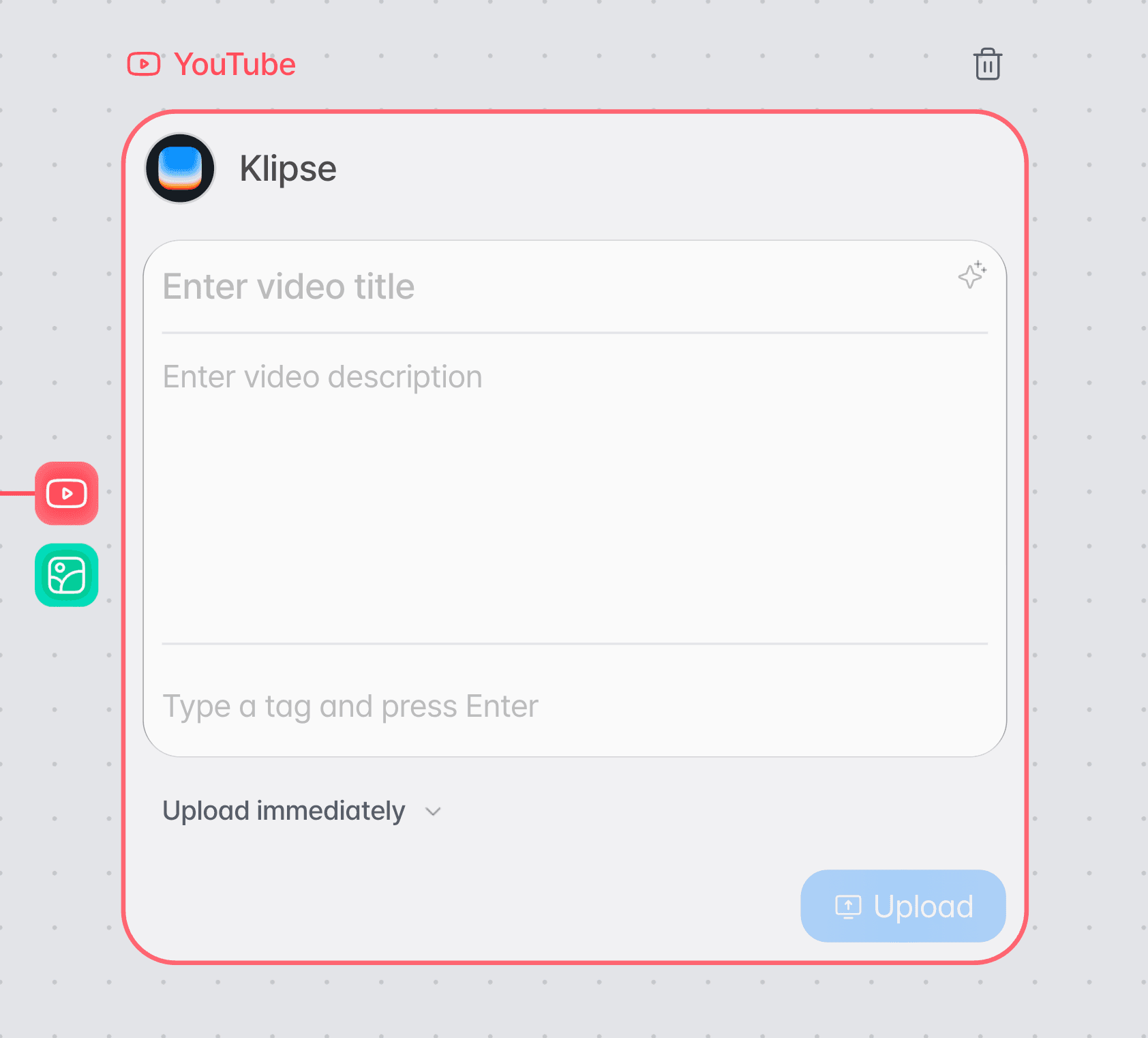
Check the video and the channel to upload to, enter the title, description, and tags, then choose the upload method.
How to use
Add a YouTube upload node.
Add a YouTube upload node in Canvas.
Connect the video to upload.
Connect the finished video to the YouTube upload node's video input.
Write the title, description, and tags.
Enter them yourself. You can also fill in the title and description with the AI writing feature.
Choose the upload method.
Choose either an immediate upload or a scheduled upload.
Run the upload.
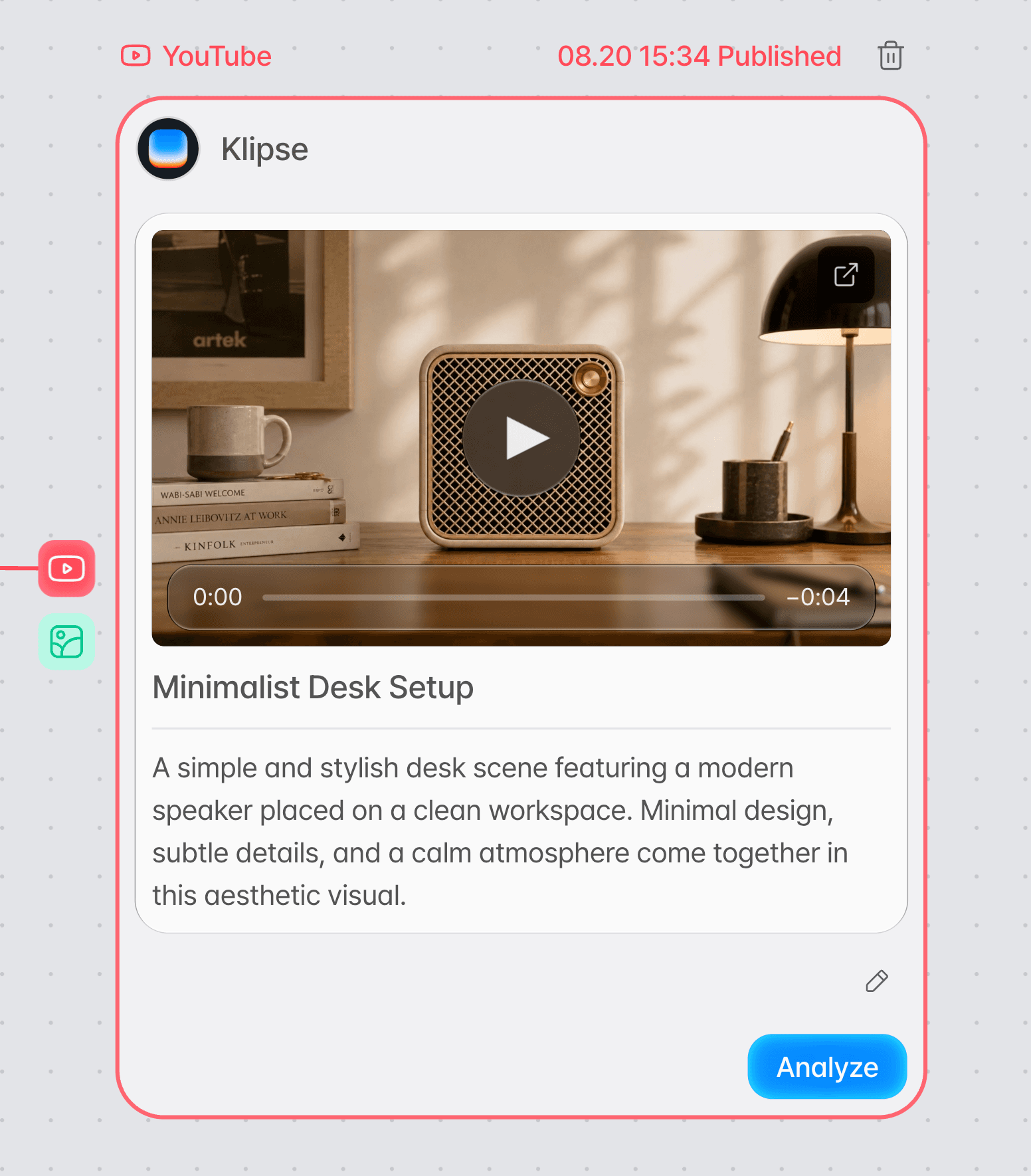
Check your settings and press the upload button to publish to YouTube.
Writing the upload details
You can enter the title, description, and tags of the video to be published on YouTube yourself.
Video title
Enter the video title that will appear on YouTube.
Video description
Write what goes in the description, such as the video's content, notices, and hashtags.
Tags
Enter keywords related to the video as tags.
Making the title and description with AI
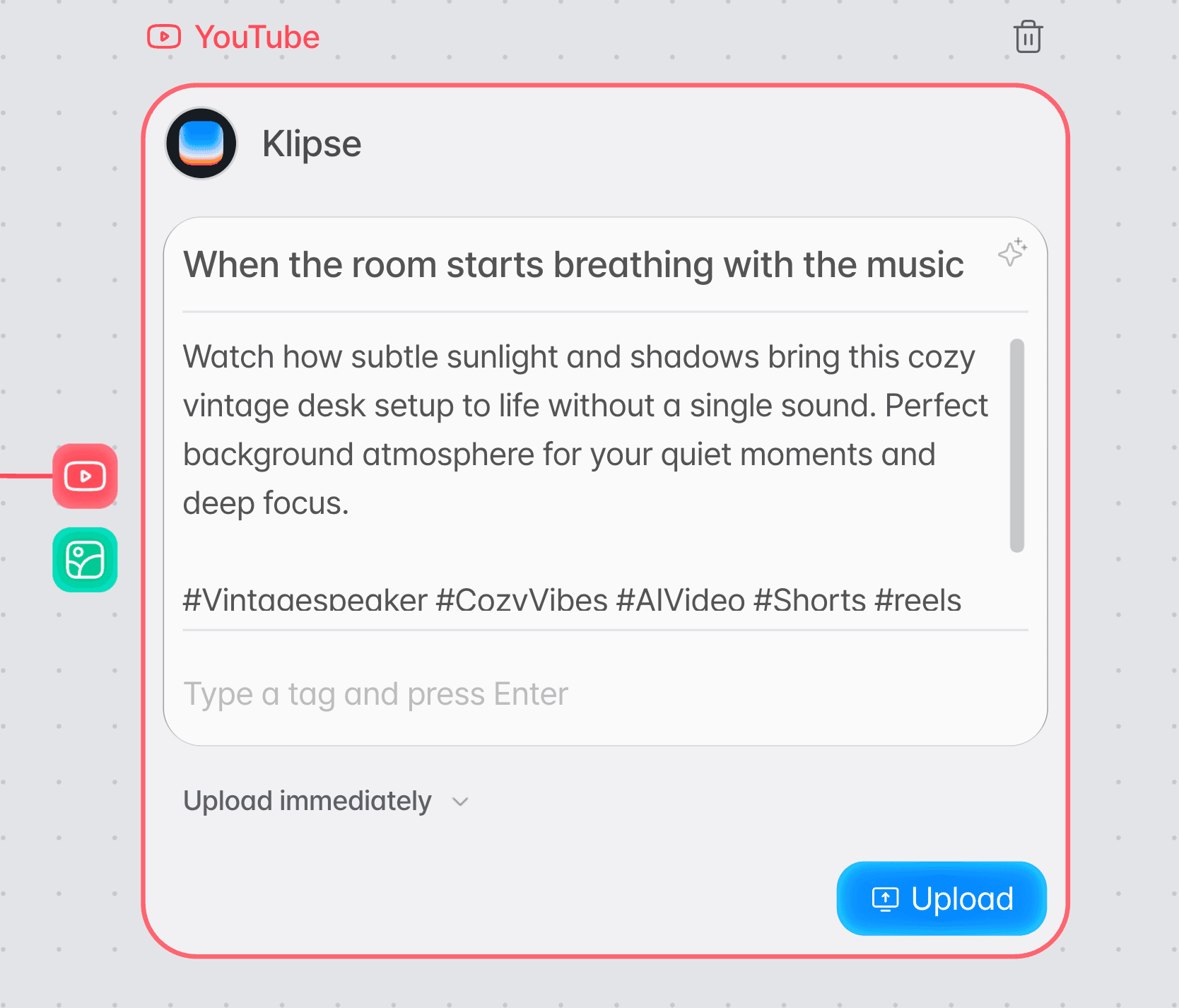
You do not have to write them yourself — AI writes the title and description from the prompt used to generate the video.
AI writing
The AI writing feature quickly produces a draft title and description that fit the video. Hashtags are added at the end of the description, and the tag field is not filled in. You can check the generated text before uploading and edit it as needed.
Upload methods
Publish the video right away, or schedule it for the date and time you want.
Publish right away
Press the upload button and the video goes to the YouTube channel right away, with the details you set.
Schedule a date and time
Specify the date and time to publish and the video is scheduled to go public at the moment you want.
Choose a scheduled upload.
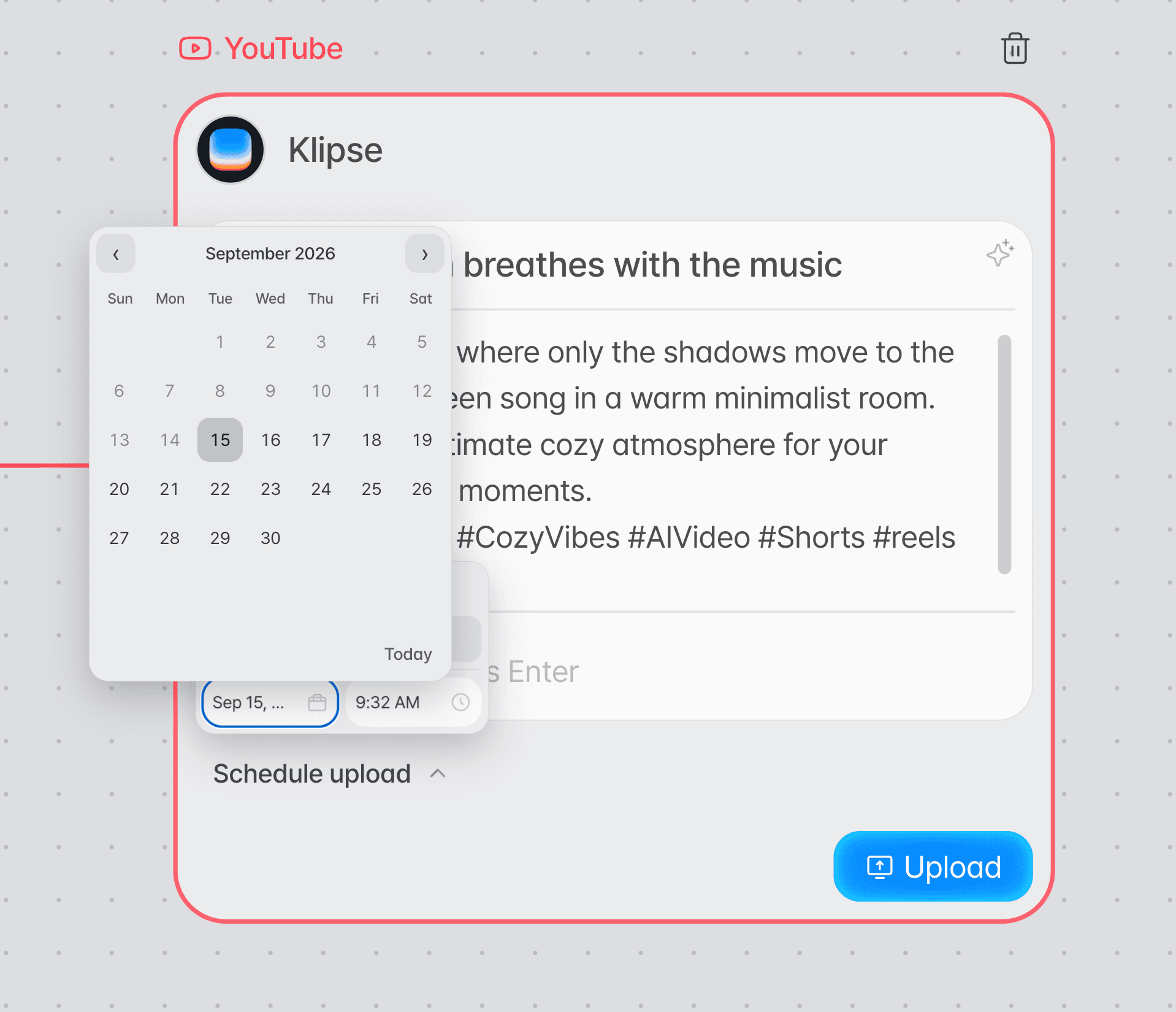
Open the menu at the bottom left of the node, which reads Upload immediately, and choose Schedule upload. Date and time fields appear in the menu, filled in at first with today's date and a time 10 minutes from now.
Set the date and time.
Press the date field to pick a date on the calendar, and press the time field to pick AM or PM, the hour, and the minute. You cannot pick a past date, and for today you can only pick a time at least 10 minutes from now.
Press the upload button.
Press the node's upload button, then Upload in the confirmation dialog, and the video goes up to your YouTube channel, then becomes public at the time you set.
Inputs and settings
| Item | Details |
|---|---|
| Video | The finished video to upload to YouTube |
| Title | Entered yourself or written by AI |
| Description | Entered yourself or written by AI |
| Tags | Entered yourself |
| Upload method | Immediate upload / scheduled upload |
| Schedule settings | The upload date and time |
Tips
Check the AI draft rather than using it as is.
We recommend checking that the generated title and description match the actual video content and your channel's tone before publishing.
Manage your publishing times with scheduled uploads.
If you made several pieces of content in advance, use scheduled uploads to publish them on the schedule you want.
Troubleshooting
| Problem | What to check |
|---|---|
| The upload button is unavailable | Check that the video to upload is connected and that the required video details have been entered. |
| The scheduled upload time is not set | After choosing a scheduled upload, check that both the date and the time are specified. |
| The AI-generated text does not match the video | Check the generated title and description, edit what you need to, then upload. |
Frequently asked questions
Do I have to write the title and description myself?
No. You can write them yourself, or use the AI writing feature to draft the title and description. You enter tags yourself.
Can I publish the video on the date I want?
Yes. Choose a scheduled upload and then set the date and time.
Can I also upload the video right away?
Yes. Choose an immediate upload and it goes up right away, with no schedule.