Composition overview
Composition is Klipse's video editor, where you place video, images, and audio on a timeline and add subtitles and transitions to build a single video. You open it from a Composition node on the canvas or from Composition in the sidebar.
Editing screen layout
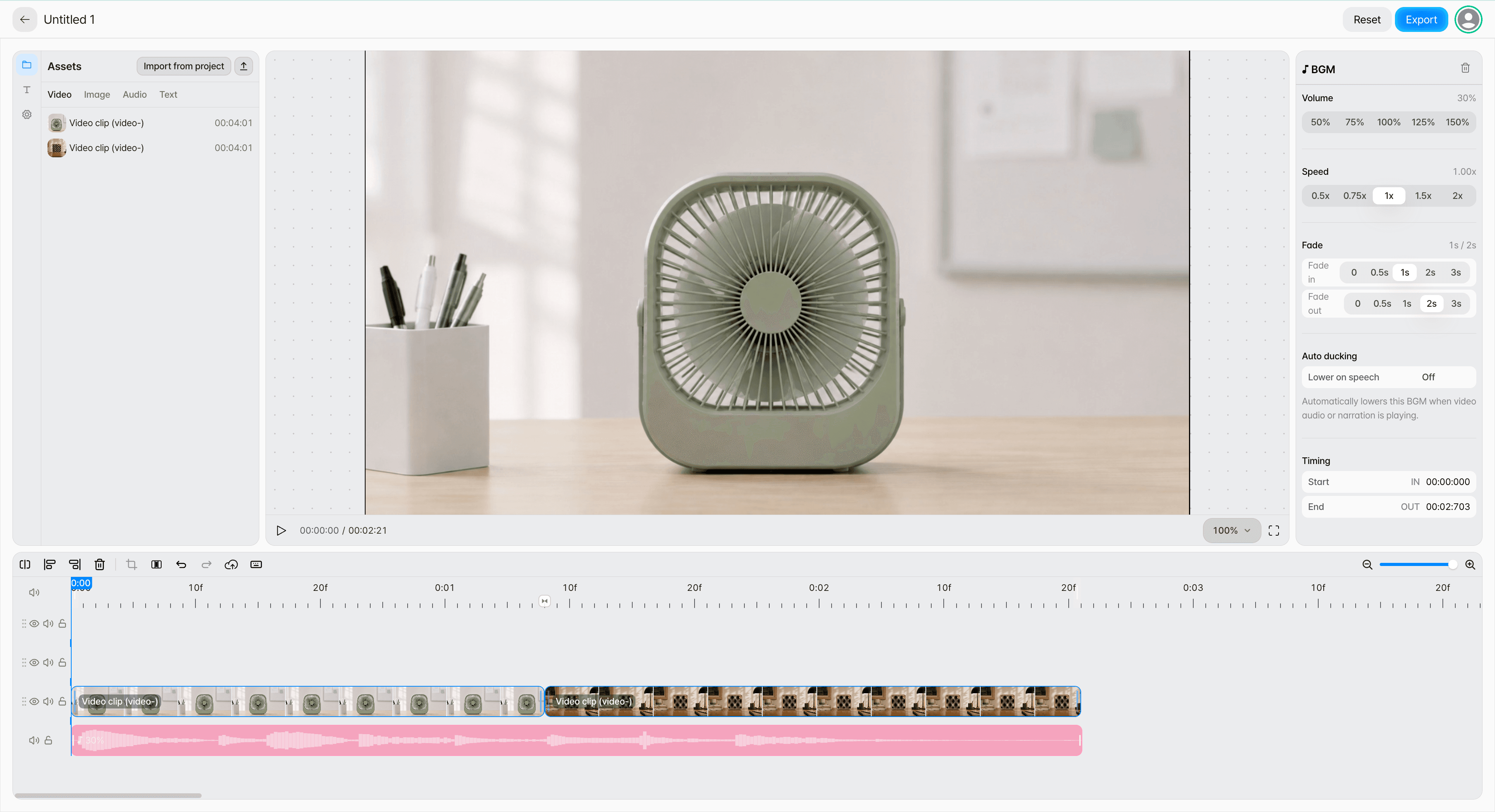
Composition builds the visual and audio elements of a video around the preview and the timeline.
Main features
Video structure
Place several video clips in order to build the overall flow.
Timeline
Manage when video, images, subtitles, and audio appear along the time axis.
Subtitles
Add text and subtitles over the video and adjust when they are shown.
Images · overlays
Place logos, watermarks, and still images over the video.
Audio
Place TTS, music, and sound effects on the timeline to match the video's timing.
Transitions
Add a scene transition such as Cross dissolve, Dip to black, or Push between two video clips that meet on the timeline.
Opening from a Composition node on the canvas
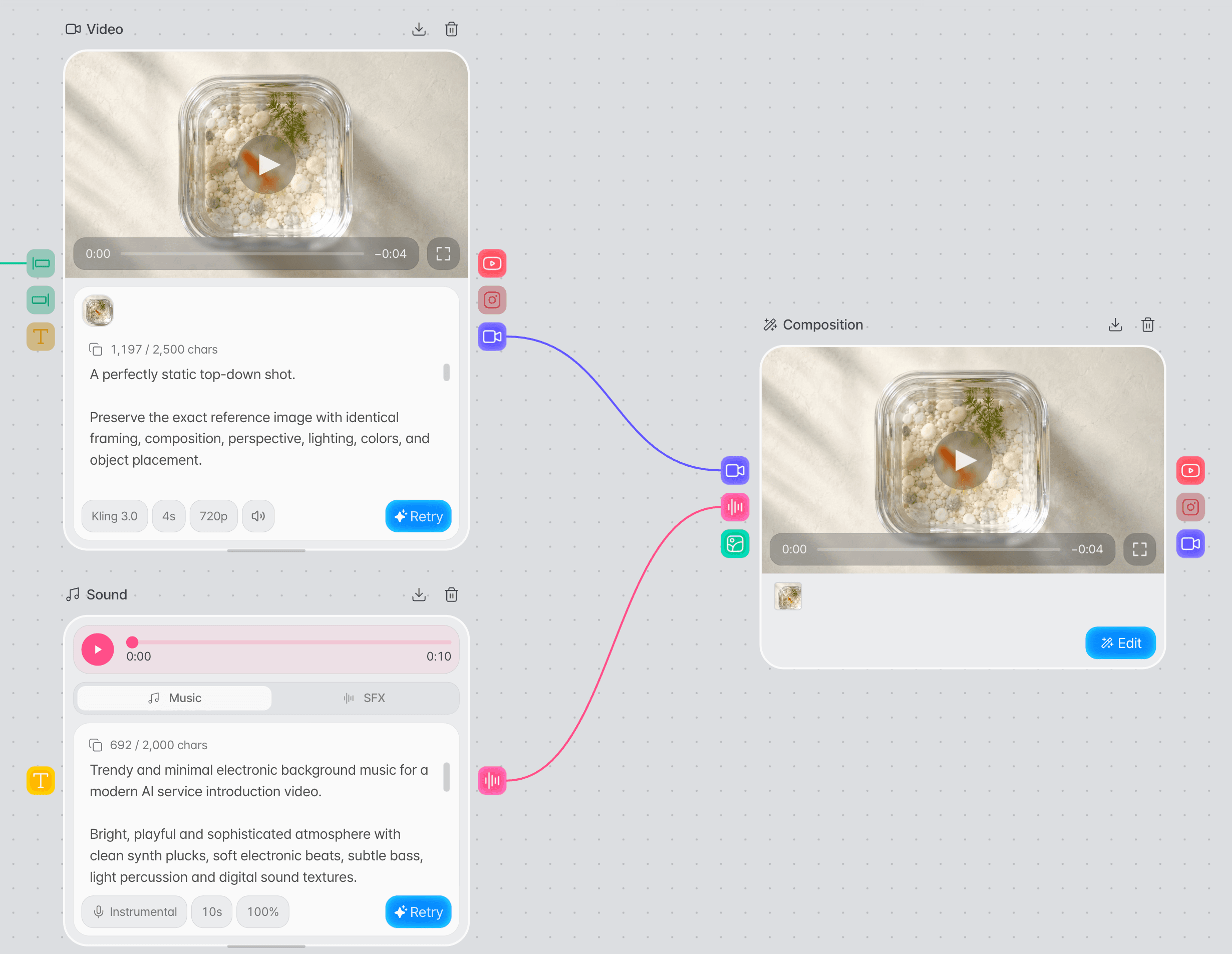
Connect media made on the canvas to a Composition node to edit it, and the finished video stays in that node.
Connect media to a Composition node.
On the canvas, connect a video node to the Composition node. Connect image and TTS or sound nodes as well when you need them.
Open Composition with the Edit button.
Select the Edit button on the Composition node to open the editing screen with the connected media. The Edit button appears once every connected video is finished.
Finish the video with Apply edit.
Press Apply edit at the top right of the editing screen; the editing screen closes and the finished video lands in the Composition node. You can connect it to a YouTube upload node to publish it.
Opening from Composition in the sidebar
Edit without a canvas by uploading files or importing videos from a project, and the finished video stays in that composition project.
Create a new composition.
Select Composition in the sidebar and press New Composition to open the editing screen. A composition you made earlier opens again from its project card in the list.
Bring in the media to edit.
Use Import from project in Assets to bring in videos from video nodes on the canvas or videos finished in Composition nodes. You can upload MP4 files from your computer, up to 100 MB each, and images and audio are uploaded as files too. How many videos you can upload or import depends on your plan.
Finish the video with Export.
When you are done editing, press Export at the top right; once rendering is done, the result screen opens. You can download the finished video from the result screen.
A video finished from Composition in the sidebar cannot be published to YouTube directly; download it to use it. See Finishing a video for how each route finishes a video.