Finishing a video
When you finish editing, check the scenes, subtitles, images, and audio timing once more, then finish the video. The button that finishes it, and where the finished video goes, depend on where you opened Composition.
Before you finish
Play the whole video
Play it from start to finish and check the scene order and the transitions.
Subtitles
Check for typos and make sure the display times match the video's content.
Images
Check the position and the display range of logos, watermarks, and overlay images.
Audio
Check that the TTS, music, and sound effects fit the scenes naturally.
Finish button and result
From the canvas you finish the video with Apply edit, and from the sidebar with Export.
| Item | Composition node on the canvas | Composition in the sidebar |
|---|---|---|
| Finish button | Apply edit, at the top right of the editing screen | Export, at the top right of the editing screen |
| After you press it | The editing screen closes and the node shows Processing video. When processing is done, the finished video appears in the node. | The editing screen closes and rendering starts. When rendering is done, the result screen opens. |
| Finished video | Stays in the Composition node. | Stays in that composition project, and its card in the Composition list in the sidebar shows Done. Reopening the project opens the result screen. |
| Download | The download button at the top right of the node | The Download button on the result screen |
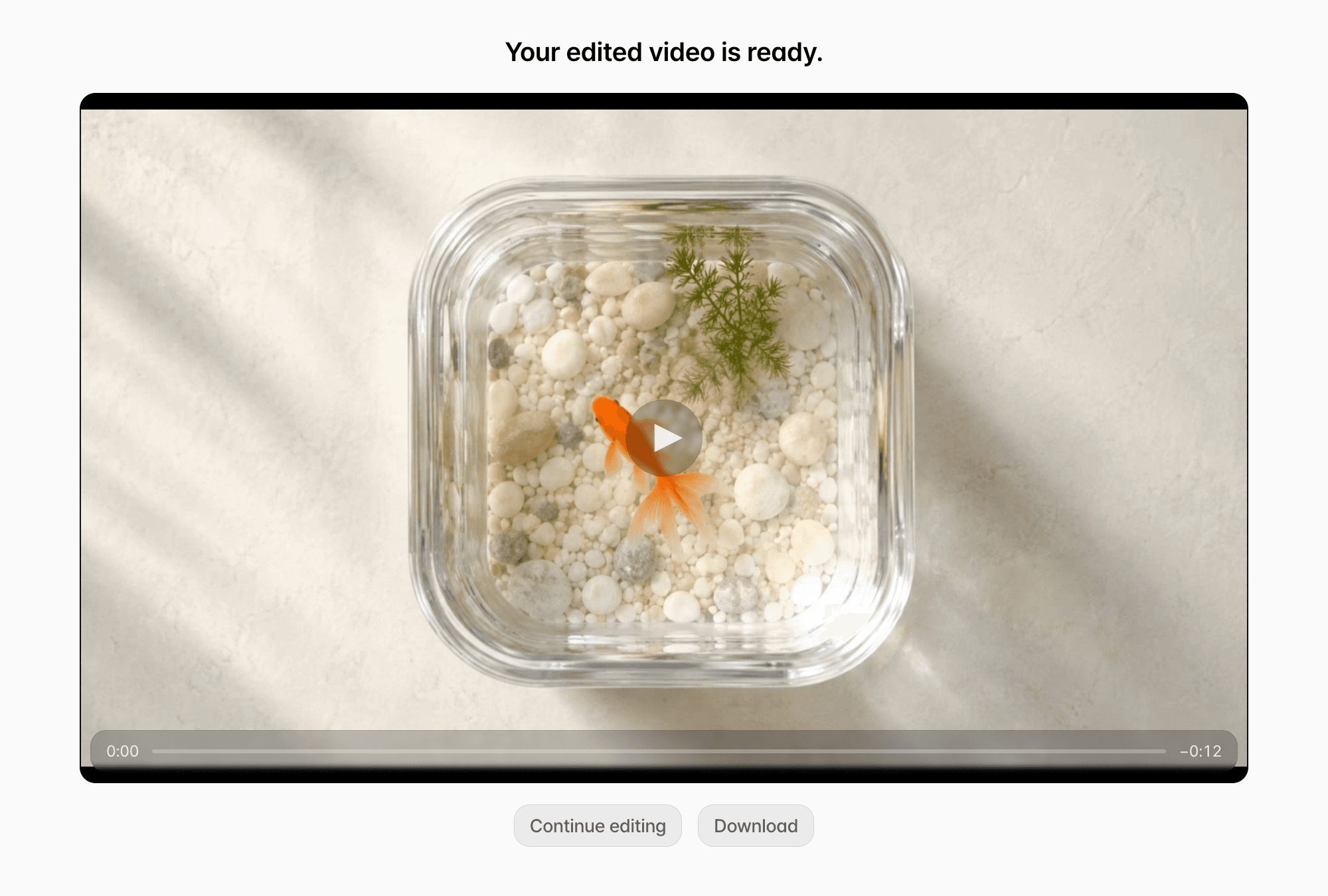
| Edit again | The node's Edit button | The Continue editing button on the result screen |
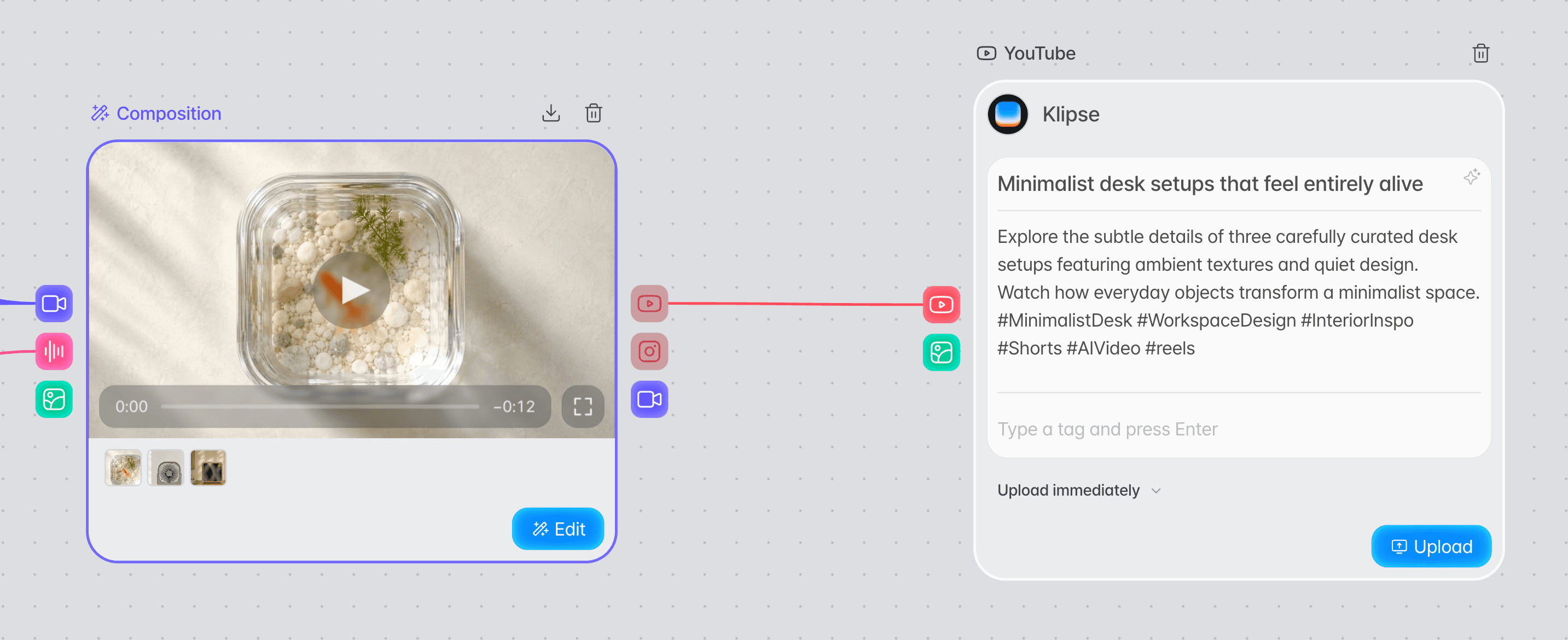
| Publish to YouTube | Choose Post to YouTube from the output point, then publish from the YouTube upload node that is added. | Not available directly. Download the video to use it. |
Common to both: There is no step for choosing a resolution or file format; the video is made as an MP4 that matches the aspect ratio chosen in the editing screen. If a finished video already exists, you are asked first whether to overwrite it. Overwrite replaces it with the new edit, and this cannot be undone.
Checking a video finished from the sidebar
When you press Export in Composition in the sidebar, the result screen opens once rendering is done. Rendering continues even if you leave the page.
Continuing with a video finished on the canvas
A video finished with Apply edit in a Composition node stays in that node, and you can connect it to a YouTube upload node to publish it.
Check the video in the Composition node.
You can play the finished video right in the Composition node on the canvas. You can also download it with the download button at the top right of the node. If you edit a finished video again and close the editing screen without pressing Apply edit, the finished video does not change. If you changed clips, subtitles, images, transitions, or the aspect ratio before closing, the node shows Re-edit needed.
Connect a YouTube upload node.
Once the video is finished, an output point appears on the right of the Composition node. Select it and choose Post to YouTube to add a YouTube upload node that is already connected. One Composition node can connect to only one YouTube upload node.
Enter the title and description, then upload.
Enter a title and description in the YouTube upload node and press the upload button to publish the video. After publishing, you can continue to Analytics.