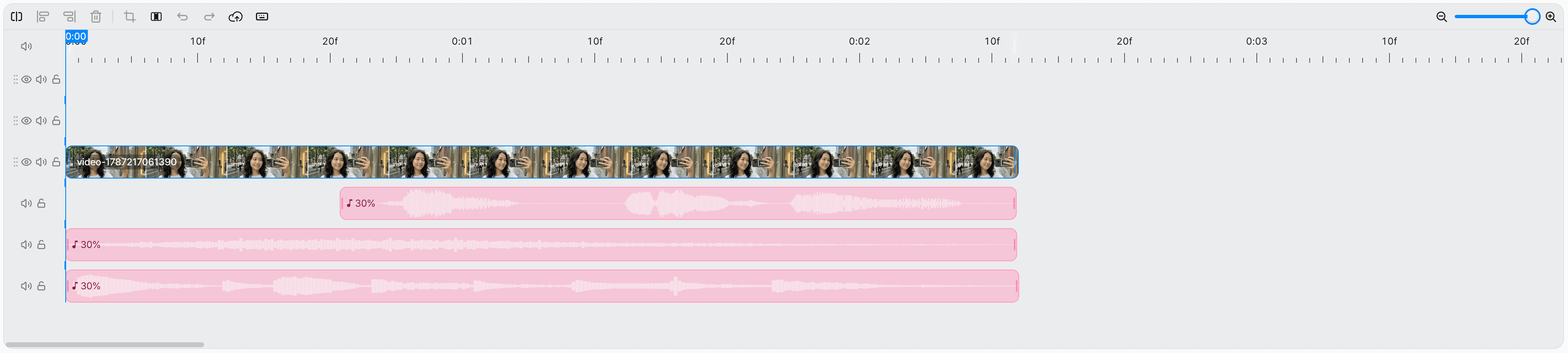
Subtitles, images, audio
Add subtitles and images over your video clips, and place TTS, music, and sound effects on the timeline to complete the visual and audio makeup of the final video.
Subtitles
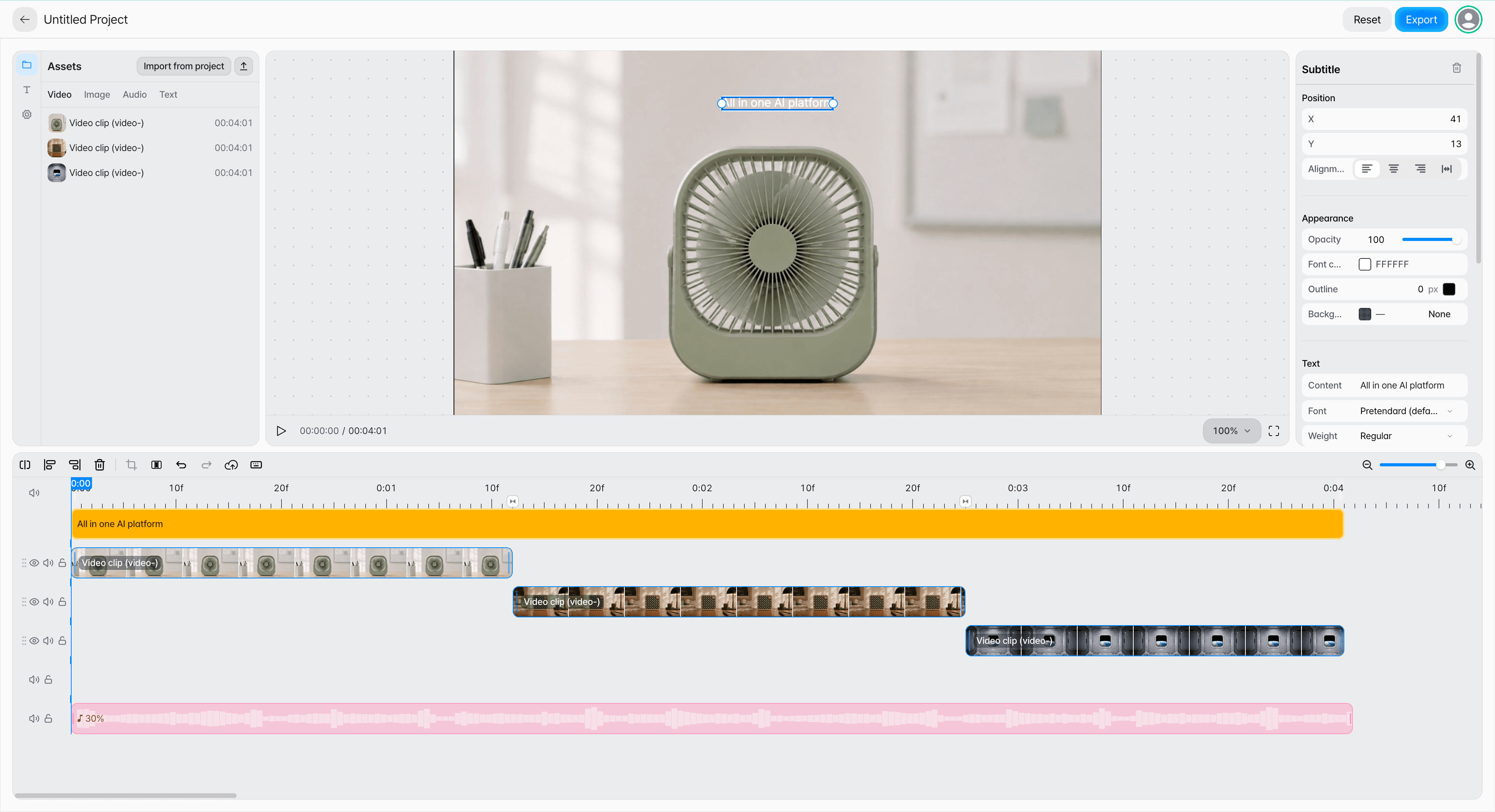
Add text to the video and show it over the ranges you need on the timeline.
Entering text
Write what you want shown in the video: dialogue, descriptions, key phrases.
Display timing
Line up the start and end points of a subtitle with the scene.
Uses
You can use many kinds of text, such as narration subtitles, product information, and CTAs.
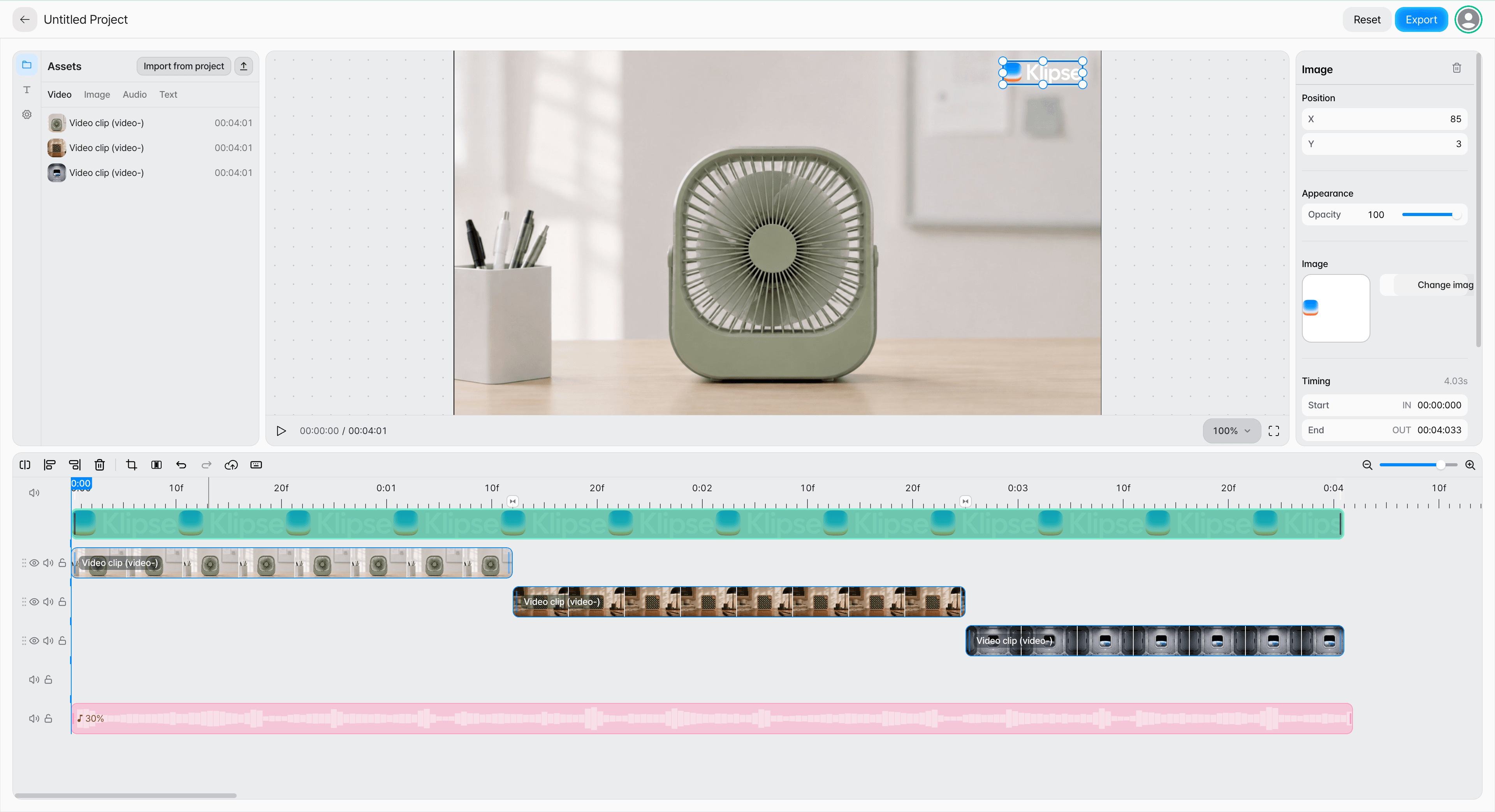
Images · overlays
You can place an image over the video or use it as a still-image scene.
Logos · watermarks
Show a brand logo or a watermark image over the video.
Image overlays
Add product, graphic, or informational images over the video.
Still-image scenes
Use an image as a scene of its own and add subtitles to it. Fade in and fade out let the image appear and disappear smoothly.
Connect an image to the Composition node.
On the canvas, connect an image node to the Composition node's image input. The connected image appears in the Image tab of Assets on the editing screen.
Add the image to the timeline from the Image tab.
Selecting the image adds it across the full length of the video. Dragging it onto the timeline adds it where you drop it, 3 seconds long.
Image files from your computer: In Composition opened from the sidebar, upload an image file with the upload button in Assets and it is added at the playhead, 3 seconds long. Drag one onto the timeline and it is added where you drop it. In a Composition node on the canvas, add an empty image with the Add image overlay button on the left, then choose the file with Select image in the settings on the right.
Audio
Place narration from the TTS node and music and sound effects from the sound node on the timeline to match the video's timing.
Narration
Place video descriptions and dialogue to match the scenes.
Background music
Use music that sets the mood for the whole video.
Sound effects
Place sound effects to match a specific action or scene change.
Audio files from your computer: In Composition opened from the sidebar, upload an audio file with the upload button in Assets and it is added as a new audio track that starts at the beginning of the timeline. Drag one onto the timeline and it is added as a new audio track that starts where you drop it.