AI prompt node
Enter a simple request and the AI writes a more specific prompt you can use for image and video generation. Choose Image or Video on the node, or connect it to the node that will use the prompt, and the prompt is written for that use and used directly as the input for the next production step.
Node screen
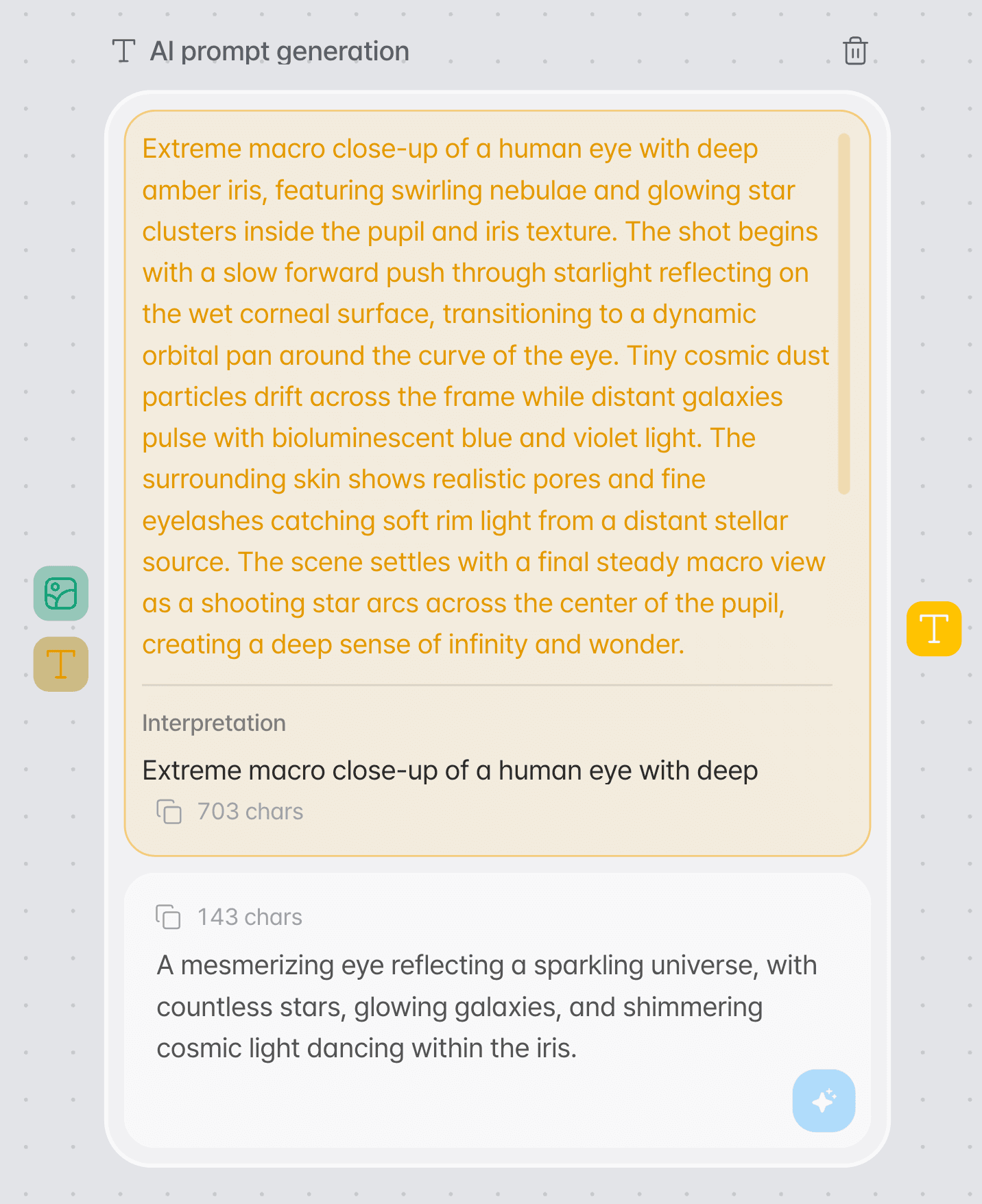
In the AI prompt generation node you enter the content you want in natural language, then press the generate button to see the prompt the AI expanded.
When to use it
Use it when you want to make an image or a video but find it hard to write a long, specific prompt.
To flesh out an idea
Expands a short idea into a generation instruction the AI can understand easily.
Before generating an image
Connect it to an image node's prompt input before you generate, and the prompt is written for an image and used as the input for making it.
Before generating a video
Use it to work out the scene, mood, motion, and other details a video generation needs in more concrete terms.
How to use
Set what the prompt is for, then enter a request, generate the prompt, and check the result.
Add an AI prompt generation node.
Add a text-type AI prompt generation node in Canvas.
Choose Image or Video.
Below the input box, choose what the prompt is for. A new node starts on Image, and the node title changes to AI image prompt or AI video prompt to match. If you connect the node's output point to the prompt input of an image node or a video node, the connected node sets the purpose instead.
Enter the content you want to make.
You do not have to write a finished prompt — enter the result you want in a short sentence.
Select the generate button.
The AI writes a generation prompt based on the request you entered.
Check the generated prompt.
Check that the result matches your intent. To make it again, select Regenerate: a new node with the same request opens beside it, where you can change the request or the purpose and generate again.
How the purpose is set
When the node is connected to an image node or a video node, the connected node sets the purpose and the Image/Video choice cannot be changed. Without a connection, the prompt is written for the purpose you chose. Once you generate, the purpose is fixed. For a prompt with a different purpose, choose it in the new node that Regenerate opens, or connect the node to the other kind of node.
Model
AI prompt generation uses the Gemini 3.5 Flash-Lite model.
Klipse sets the model
The AI prompt generation node has no model selector. When you enter a request and generate, the model set by Klipse writes the prompt.
Input and output
The AI prompt generation node takes your text request and outputs prompt text that a generative AI model can use.
User request
Describe the image or video you want to make in natural language.
Generated prompt
Outputs a detailed text prompt that other generation nodes can use.
Example input
I want to make a shoe ad video
Output
The generation prompt the AI built from your request appears in the node's result area.
Connecting to other nodes
Choose Make an image or Make a video from the output point to add an image or video node connected to this node. Connect a node before you generate, and the prompt is written for it.
AI prompt → image node
Connected to an image node's prompt input, it writes an image prompt covering the subject, scene, style, lighting, and composition, which becomes the image generation request.
AI prompt → video node
Connected to a video node's prompt input, it writes a video prompt covering the action, motion, and camera feel, which becomes the text input for video generation.
Connecting to more than one node
One node can connect to several nodes of the same kind, and adding a connection keeps the existing ones.
If the node's purpose is set and you connect it to the other kind of node, a new AI prompt generation node for that kind is made from the same request. It is connected and writes its prompt right away. The original node and its connections do not change, and writing a prompt does not use credits.
Tips
Write down the purpose first.
Including what kind of content you want to make — “product ad”, “vlog”, “shorts” — makes your intent easier to convey.
Include the key elements.
Briefly add the elements that must appear, such as the product, person, place, mood, and motion.
Troubleshooting
| Problem | What to check |
|---|---|
| The prompt is not what you wanted | Add key information such as the purpose, audience, and mood of the content you want, then generate again. |
| The prompt cannot be used in the next node | Check that the text output of the AI prompt generation node is correctly connected to the text input of the next node. |
| A prompt meant for an image node comes out as a video prompt | Before you generate, check that the node title reads AI image prompt. If it reads AI video prompt, choose Image or connect the node to the image node's prompt input, then generate. If you already generated, choose Image in the new node that Regenerate opens, or connect the node to an image node to make a new node for images. |
| The Image/Video choice cannot be changed | When the node is connected to an image node or a video node, the connected node sets it. It also cannot be changed after you generate — choose it in the new node that Regenerate opens. |
| Connecting made a second AI prompt generation node | When a node's purpose is set and you connect it to the other kind of node, a new node for that kind is made. The original node and its connections stay as they are. |
| No result appears | Check that a request has been entered, then run the generate button again. |
| An Upgrade required window opens | AI prompt generation is available on the Lite plan or higher. This also applies to a node made by connecting to another kind of node. |
Frequently asked questions
Can I write the prompt myself?
Yes. The AI prompt generation node is useful for fleshing out a short idea, and if you already have the prompt you want, you can enter it directly in the generation node.
Where can I use the generated prompt?
Connect it to the prompt input of an image node, a video node, and so on, and use it as the prompt for the next production step. If you connect the node before you generate, the prompt is written as an image prompt or a video prompt for that node.
Can I regenerate the result if I do not like it?
Yes. Select Regenerate and a new node with the same request opens beside it. Change the request or the purpose and generate again to make a different prompt.
Does making a prompt use credits?
No. Generating a prompt does not use credits. Credits are used when you generate an image or a video with the prompt.