Editing basics
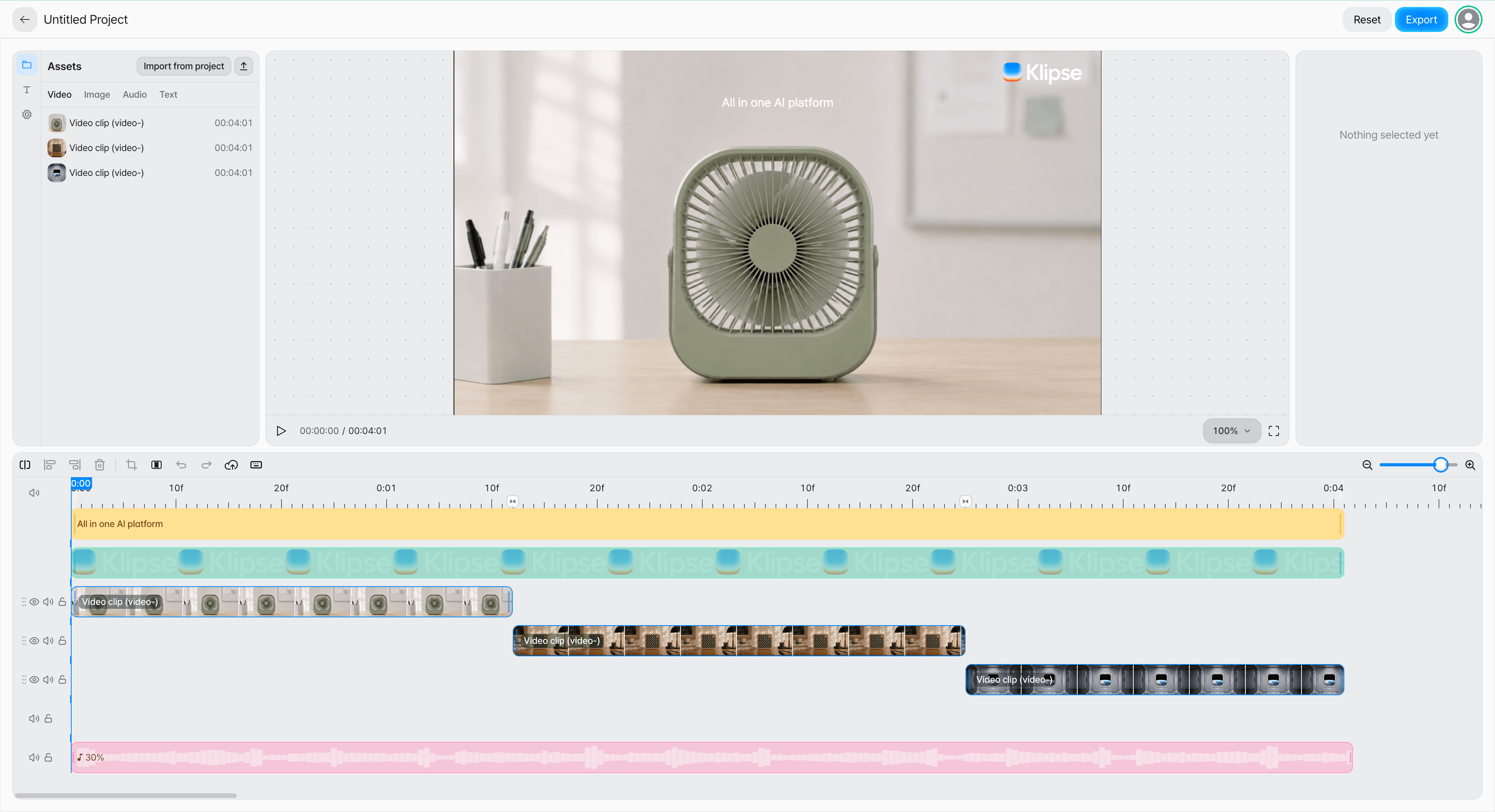
Place the media you want to edit on the timeline, adjust the order of the clips and how long each one is shown, then check the overall flow in Preview. This page covers the basic controls you need the first time you use Composition, along with the timeline concept.
Basic editing flow
Load your media.
When you open Composition from a Composition node on the canvas, use the video, images, and audio connected to the node. When you open it from Composition in the sidebar, bring in your project's videos with Import from project in Assets, or upload video (MP4), image, and audio files with the upload button.
Place it on the timeline.
Arrange the position and order of the media to suit the flow of the video.
Adjust how long it is shown.
Adjust when each video, image, and audio item starts and ends.
Check it in Preview.
Play it back and check the scene order and the overall timing.
Understanding the timeline
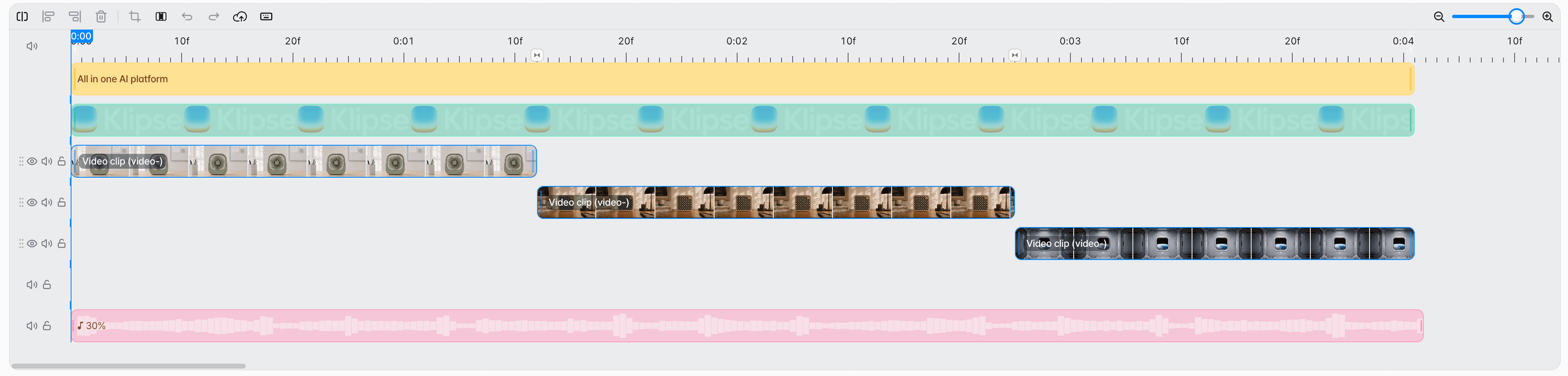
The timeline is the editing area where all media is placed along the video's flow of time.
Video clips
Set the order and playback range of the main video.
Images · subtitles
Line up the start and end points of the elements shown over the video.
TTS · sound
Match the playback position of narration, music, and sound effects to the video.
Working with clips
Reordering
Move a clip to change the order in which the video plays.
Range adjustment
Adjust the start and end points at which media is shown or played to suit the flow of the video.
Transitions
Add a transition such as Cross dissolve or Push between two video clips that meet on the timeline. Select the Add transition marker at the clip boundary on the timeline ruler to choose a type. Once a type is set, select the same marker again to change the Transition length.
Preview
While editing, play back repeatedly in Preview to check the timing.