Composition node
The Composition node gathers the video, voice and sound, and images made in Canvas into one edit. Connect the media, then apply subtitles, audio, and transitions on the editing screen.
Node screen
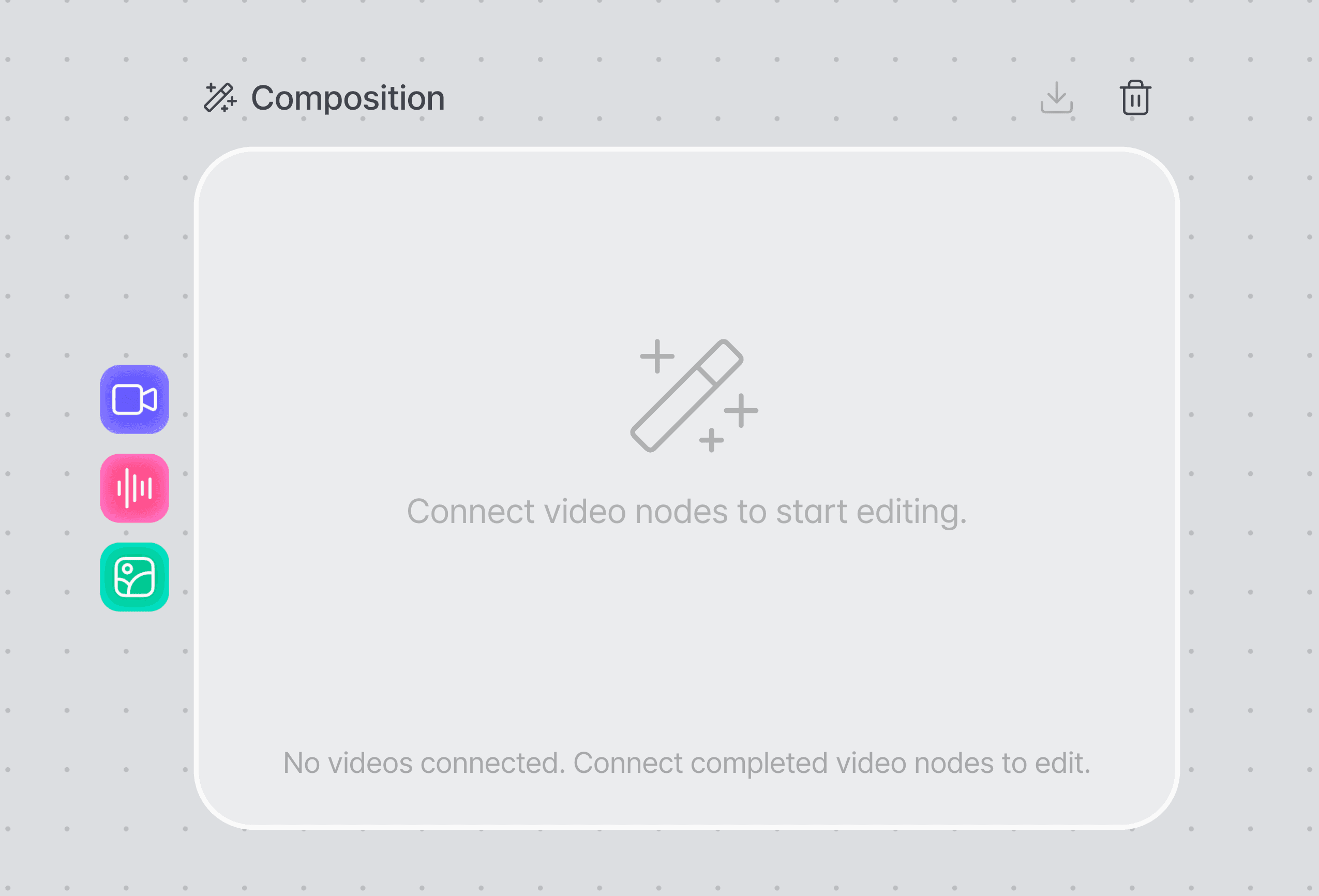
The Composition node appears empty until a video to edit is connected. Connect a video node and you can start editing.
What you can do on the editing screen
After connecting media to the Composition node, do the actual video editing on the editing screen.
Video composition
Arrange several video clips in order and build the flow of the whole video.
Timeline
Manage when video, images, subtitles, and audio appear along the time axis.
Subtitles
Add the text and subtitles you need over the video to convey information about the content.
TTS · music · sound effects
Place the audio you connected on the timeline and use it as narration, background music, and sound effects.
Image overlay
Place images such as a logo or watermark over the video, or use still images as elements of the content.
Transitions
Apply a transition effect between two video clips that meet on the timeline so that scenes connect to each other naturally.
How to use
Connect the media you need for editing, then work in Composition.
Add a Composition node.
Add a Composition node in Canvas. If you choose Add to an edit from a finished video node's output point, a Composition node with that video connected is added right away.
Connect the video to edit.
Connect a video node that has finished generating to the Composition node.
Connect the audio and images you need.
Connect the extra media you will use in editing, such as TTS, music and sound effects, and images.
Move to the editing screen.
Start editing from the Composition node and the connected media is available in Composition.
Do the video editing.
Use clip composition, subtitles, audio, image overlays, and transitions to finish the video.
Select Apply edit.
The editing screen closes and the node starts processing the video. When processing finishes, you can play the finished video right in the node. If the node already has a finished video, you are asked first whether to overwrite it with the new edit.
Media you can connect
Connect the media your editing job needs to the Composition node's inputs.
Video
Connect video generated by a video node. The connected video is used as the base video source to edit in Composition.
TTS / sound
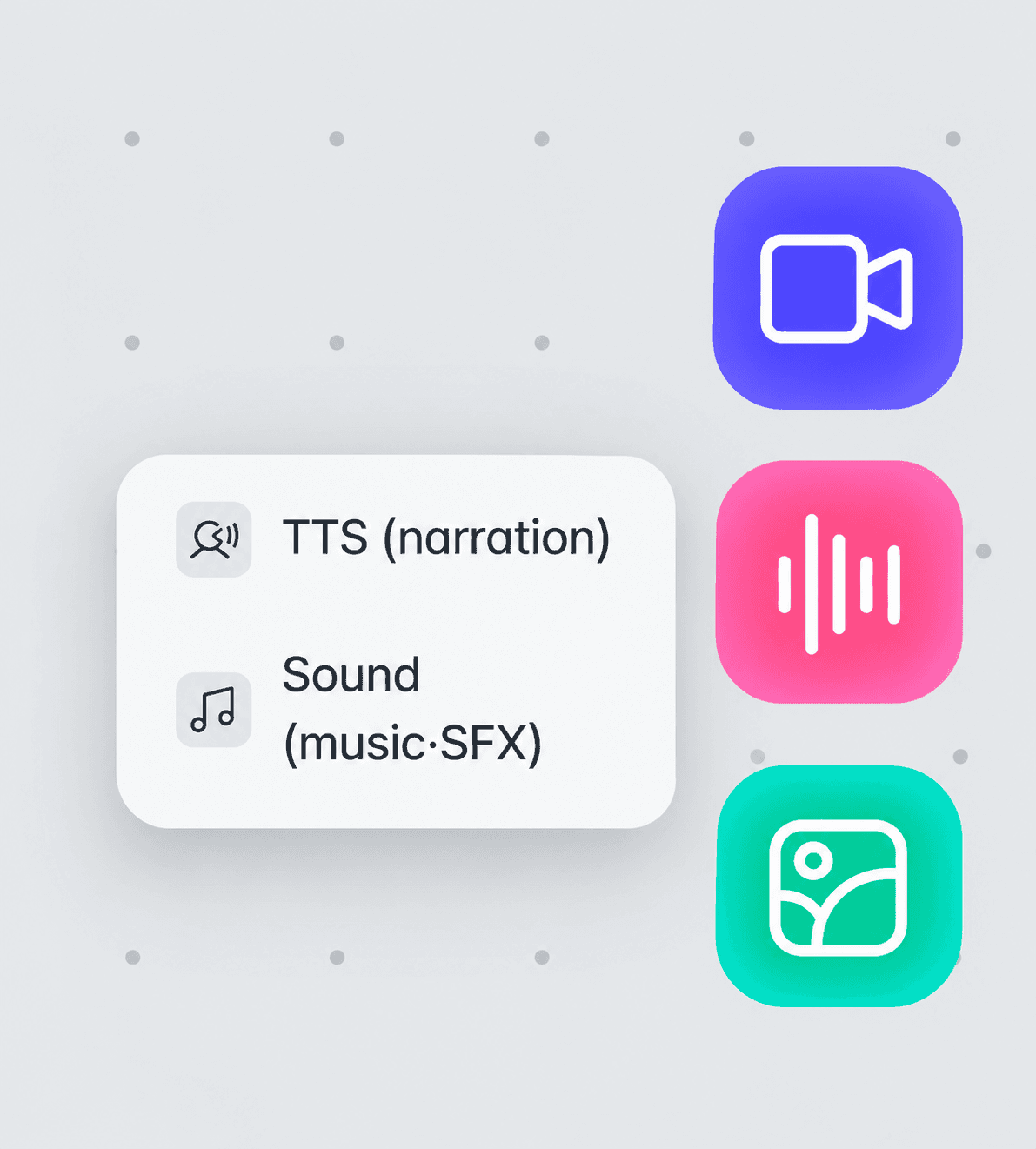
Connect narration from a TTS node and music and sound effects from a sound node, and use them as the audio sources for video editing.
Image
Connect an image node and use it as a watermark, a logo, an overlay image, or a still-image scene. Fade in and fade out let an image appear and disappear smoothly.
Connecting to other nodes
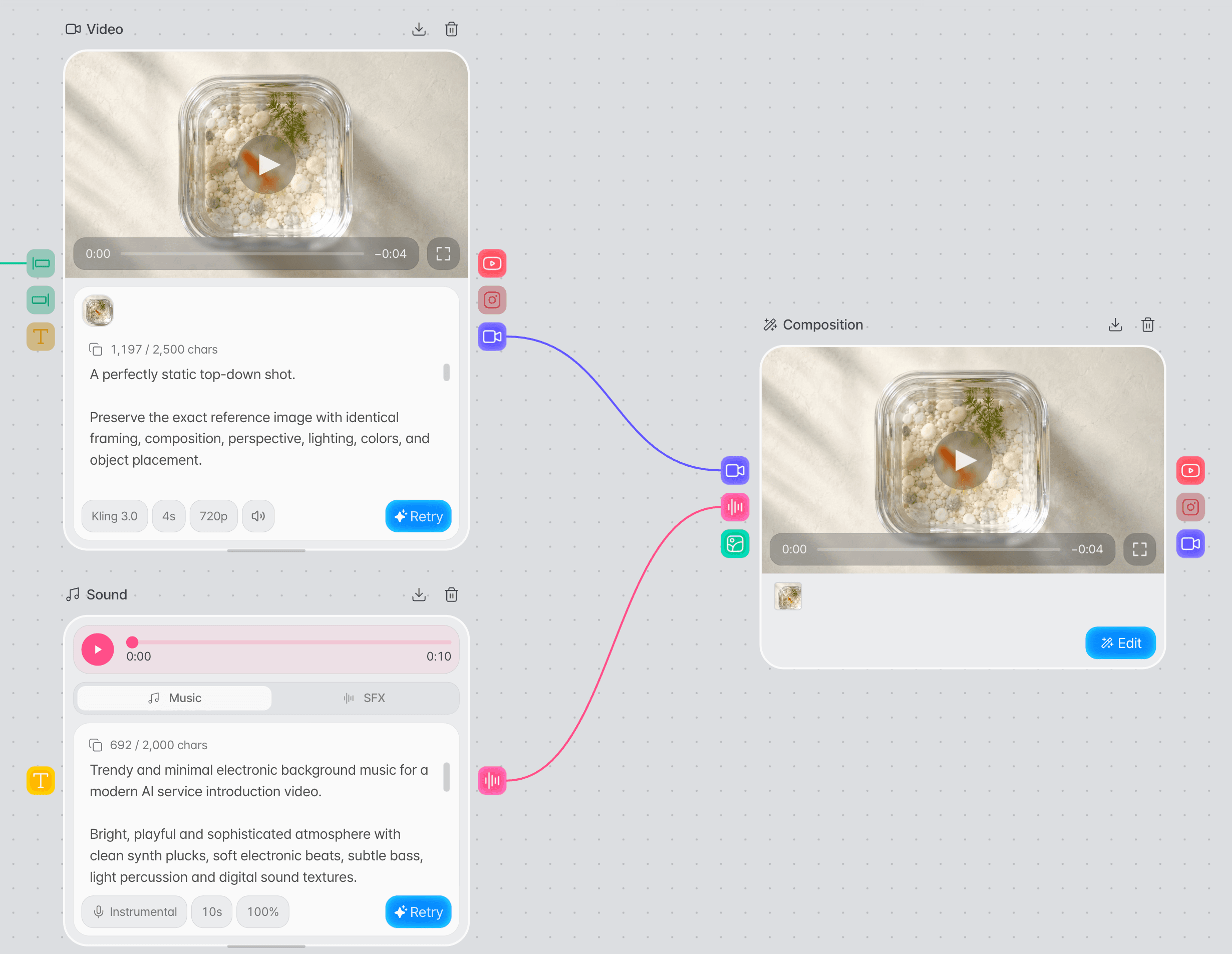
Connect the media to edit to the input points on the left. Take the finished video on to the next task from the output point on the right. You can connect several nodes to one input point.
| Connection point | Node to connect | Notes |
|---|---|---|
| Video input | Video node, another Composition node | Must be connected. The edit button appears once every connected video is finished. |
| Audio input | TTS node, sound node | Connect when you need it. You can edit without it. |
| Image input | Image node | Connect when you need it. You can edit without it. |
| Output › Add to an edit | Composition node | Edits the finished video again in a new Composition node. |
| Output › Post to YouTube | YouTube upload node | Publishes the edited video to YouTube. One Composition node can connect to only one. |
Examples
Editing an AI ad video
Connect TTS narration, background music, and a brand logo image to your generated video clips and edit them into a single ad video.
Short-form from several scenes
Join several video clips with transitions between them, then add images and subtitles to build a single short-form video.
Troubleshooting
| Problem | What to check |
|---|---|
| Editing cannot be started | Check that a video node that has finished generating is connected to the Composition node. |
| TTS or sound is not shown | Check that the TTS or sound node has finished generating, then connect it to the audio input. |
| The image is not included in the edit | Check that the image node is connected to the Composition node's image input. |
Frequently asked questions
Can I open the editing screen without a video connected?
No. The edit button appears only after a finished video node is connected.
Can I use TTS and sound at the same time?
Yes. Connect TTS narration and music or sound effects separately and use them together while editing.
How can I use images in a video?
You can add an image as a watermark or logo, or show it on top of the video. Place an image so that it covers the whole screen and it can also work as a scene of its own.